Mitel 6930 Quick Reference Guide V2

Modified on Fri, Jun 12 at 3:45 PM


Quick Reference Guide
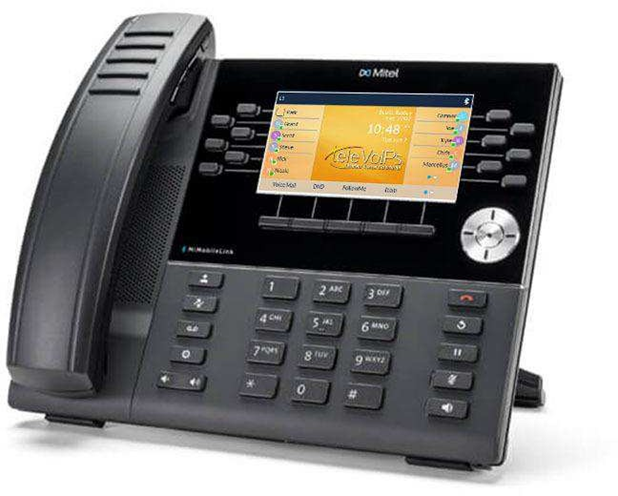


Mitel 6930


Call Handling
Blind Transfer
  1. To transfer to another number/extension, press the Xfer softkey while having an active call.
  2. Enter the number/extension of whom you would like to transfer to and then press the Xfer softkey again.
Attended Transfer 
  1. During an active call, press the Up or Down navigation keys to highlight the recipient and press the key or Xfer softkey to complete the call transfer.
  2.  If you are not connected to the transfer recipient, press the Xfer softkey, enter the recipient’s number and press the Dial softkey. At any time, press the Xfer softkey again to complete the call transfer.
Sending a Call to the Parking Lot 
  1.  To park a call, while the call is active, press one of the PARK softkeys. The call will remain on hold on the chosen parking spot (Typically 701-705).
  2. To pick up a call in park, press the corresponding park extension, or dial the park slot extension.
Setting Up a Conference 
  1. Ensure you are on an active call with one of the parties with whom you wish to create a conference.
  2. If you are already connected to the party you wish to conference in, press the Up or Down navigation keys to highlight the conference target and press the key or Conf softkey to complete the 3-way conference.
  3. If you are not already connected to the party you wish to conference in, press Conf softkey, enter the desired number and press the Dial softkey. At any time press the key or the Conf softkey again to complete the 3-way.
Do Not Disturb (DND) 
  1. To activate DND, press the fourth lower softkey for “next page,” then the DND softkey. The words “DND activated” will display on the screen.
  2. To turn off DND, press the DND softkey again and the onscreen message will disappear.
Transfer Directly to Voicemail 
  1.  If you would like to transfer to someone’s voicemail, press the Xfer softkey while on an active call. 
  2.  Then dial '03', then enter the desired extension and then the Xfer softkey again. (Ex. 03201)
Call Forwarding
  1. To enable call forwarding, we'd suggest using the Answering Rules on the Manager Portal
  2. You can also use the feature codes below:
    Enable Forwarding: *40
    Disable Forwarding: *73

Keys

               Description
Press this key to toggle between speaker and connected headset. 
Press this key to see a list of recently called numbers. Use the navigation keys to select the desired number, then press on the on- screen dial option.
To bring up a list of recently received calls press the Callers key. (This also clears out the missed calls notification) 
Redial key - Displays a list of your previously dialed calls. Pressing the Redial key twice redials the last dialed number displayed on the Home screen
Navigation Keys/Menu – Four navigation keys to move up/down/left/right.
Volume – When not on a call adjust volume for ringer. When on a call adjust volume for handset, speaker, or headset. 

Press to activate Mute. Press again to unmute
Press the line button to activate that line.
Hold – Press once to put the call on hold. Press again to take the call off of hold. This is a local hold.
Press the Goodbye key to hang up the phone while using the speaker/headset. The Goodbye key can also be used to exit the phone menu.

Was this article helpful?

That’s Great!

Thank you for your feedback

Sorry! We couldn't be helpful

Thank you for your feedback

Let us know how can we improve this article!

Select at least one of the reasons
CAPTCHA verification is required.

Feedback sent

We appreciate your effort and will try to fix the article