In this step you will learn how to add new users and manage their profiles and settings. Users are
very important because they are the ones helping you run your business!
Definition: A user is anyone who has access to a site, which may include portal access, domain
access, or both. Users can be employees (provisioned based on job responsibilities) or end-users
(provisioned based on usage needs).
How to Add a User
- In the Users tab select Add User in right corner
- Fill out Required fields: First Name, Last Name, Extension, Emergency Caller ID, Emergency Address, Email Address
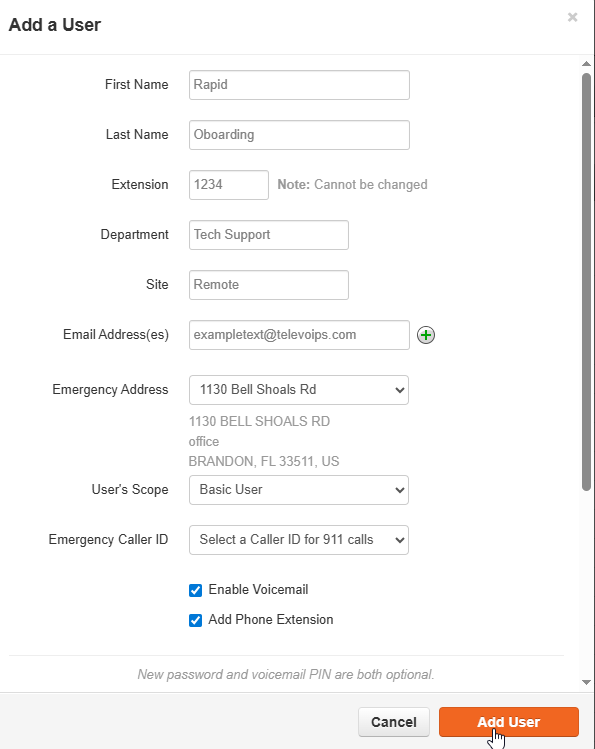
- Here you can also choose the Scope of the User; Click here for more info on User Scopes.
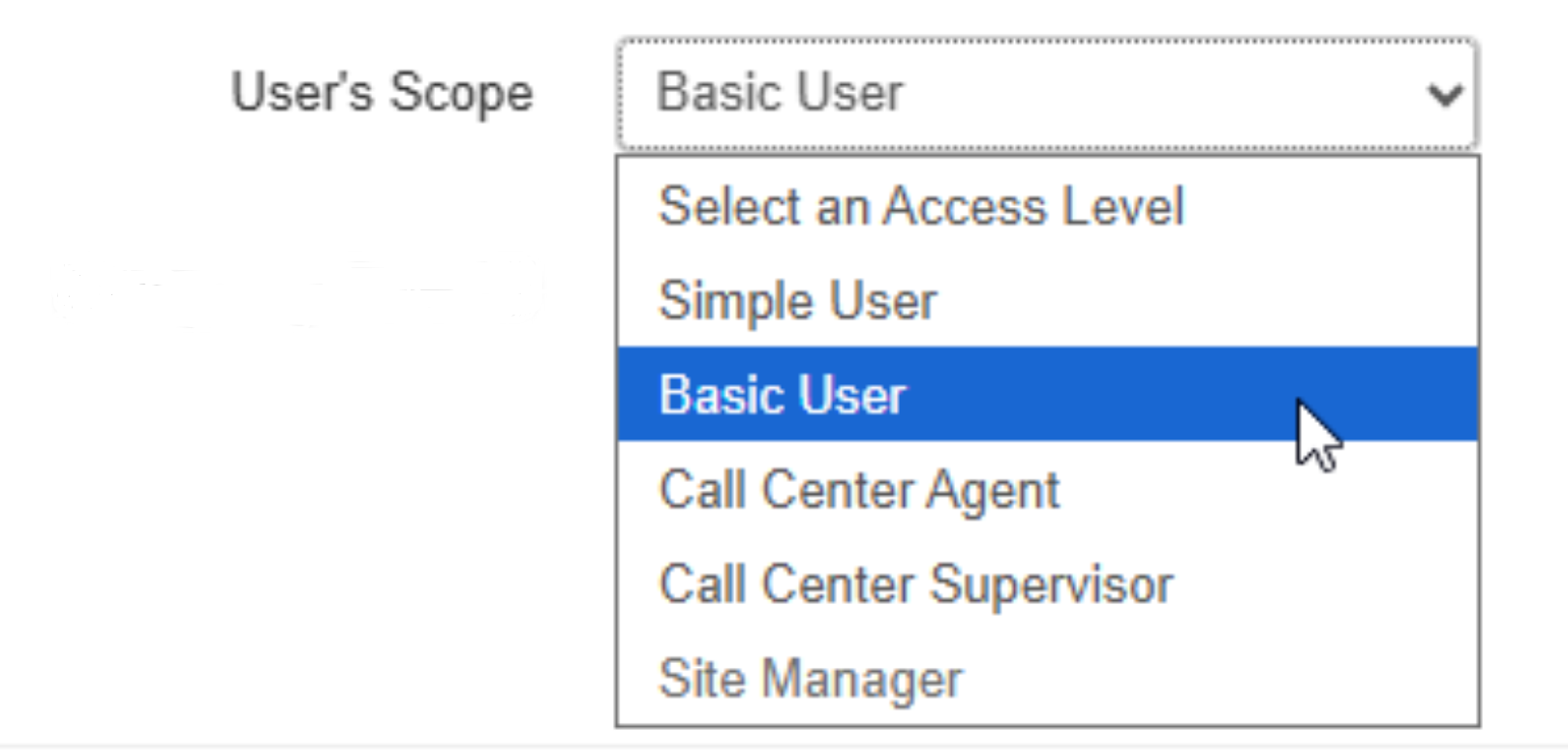
After the extension is created, you will need to go back into the user to access additional features.
In the Profile tab:
(Click on user to view this page)
- Here you must set the login name for your Users
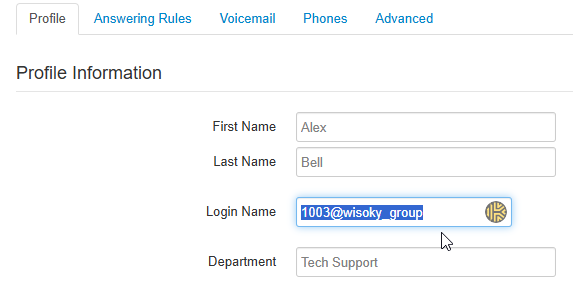
In the Voicemail tab
- First click enable voicemail then scroll down to Notifications
- Check the "Receive an email..." box and select email type
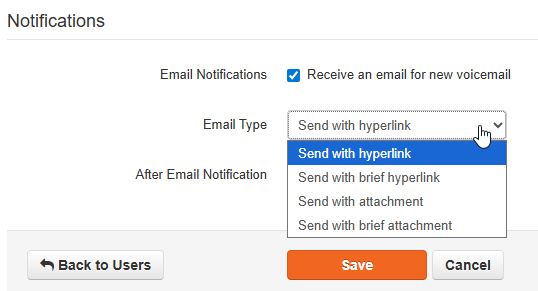
In Advanced tab
- Just click "Send Welcome Email"
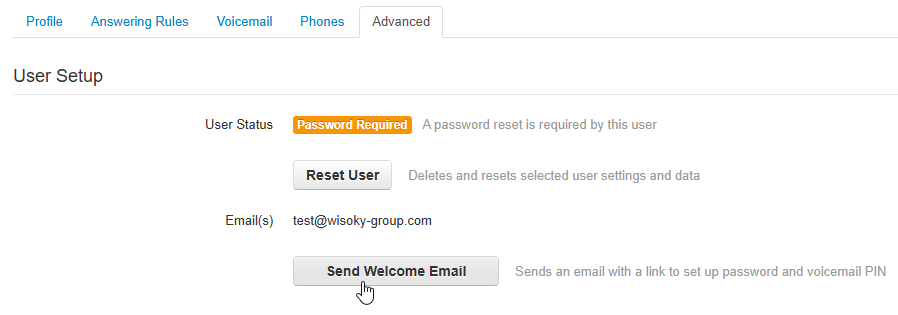
- From here, the user will receive a welcome email instructing them to create their password and complete the setup.
Next step in the onboarding process: Managing Call Queues
Was this article helpful?
That’s Great!
Thank you for your feedback
Sorry! We couldn't be helpful
Thank you for your feedback
Feedback sent
We appreciate your effort and will try to fix the article