Yealink T73U - Quick Reference Guide
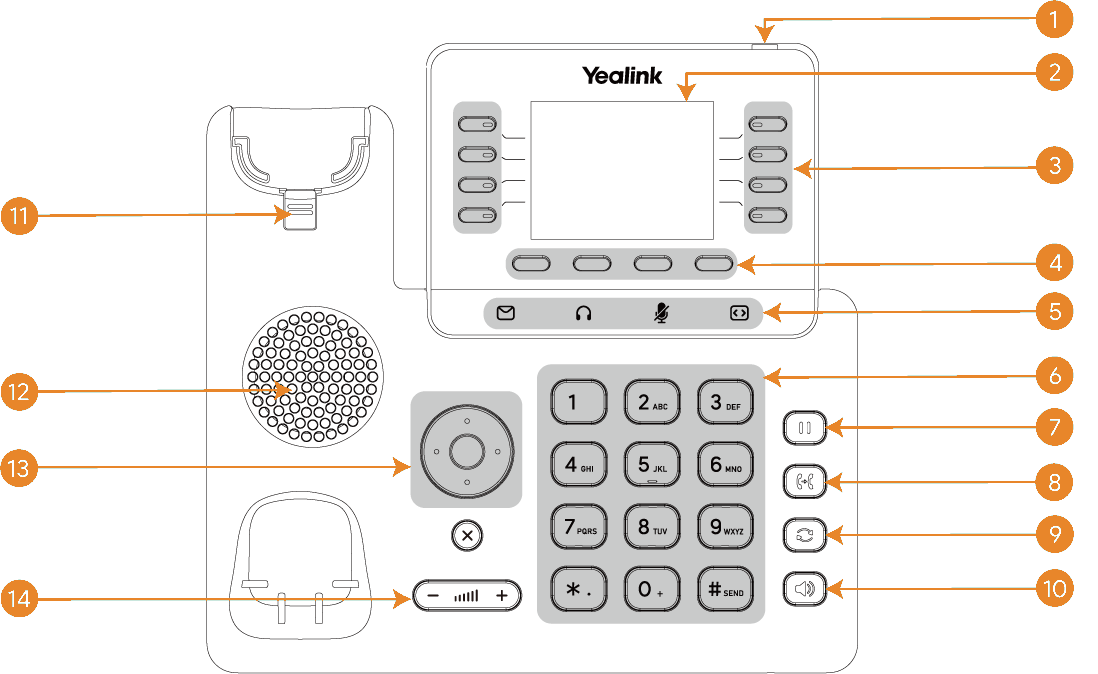
T73U Hardware Key Reference
1. Power LED Indicator | 8. TRANSFER Key |
2. Phone Screen (2.8" Color) | 9. REDIAL Key |
3. Line Keys | 10. Speakerphone Key |
4. Soft Keys | 11. Reversible Tab |
5. MESSAGE / HEADSET / MUTE / Page Keys | 12. Speaker |
6. Keypad Keys | 13. Navigation Keys / OK Key |
7. HOLD Key | 14. Volume Key |
Call Handling Blind Transfer - 1. During an active call, press the Transfer soft key. The call is placed on hold. 2. Enter the number/extension you would like to transfer the call to. 3. Press the B Transfer softkey. Attended Transfer - 1. During an active call, press the Transfer soft key. The call is placed on hold. 2. Enter the number/extension you would like to transfer the call to; press Send. 3. When the second party answers, announce the call then press the Transfer soft key. Parking a Call - 1. During a call, press an empty park key. The call will be transferred to that parking lot. 2. To pick a call from park: press an occupied park key. 3. An occupied parking lot will have a red light while an empty one will have a green light. Setting Up a 3-Way Conference Call - 1. During an active call, press the Conference soft key. 2. Enter the extension or external number of the second party, then press the Send soft key. 3. Press the Conference soft key again when the second party answers. All parties are now joined in the conference. 4. Hang up the handset to disconnect all parties or press End Call. Do Not Disturb (DND) - 1. To activate or deactivate DND: Press the DND soft key when the phone is idle.
Call History While the phone is idle: 1. Press the History soft key. 2. Press up/down to switch between All, Missed, Placed, and Forwarded. 3. Select an entry from the list using the up and down arrow key. 4. To place a call to that number: Press the Send soft key 5. To view information about the entry: Select the Option soft key, then select Detail from the prompt list 6. To add to your Local Directory: Select Add to Contacts | Key Descriptions Speakerphone Key — Press this key to use the speakerphone. Headset Key — Press this key to activate headset mode. Mute Key — Press this key to mute the microphone or a call. Message Key — Press this key to access voicemail. Redial Key — Press this key to redial a previously dialed number. Hold Key — Place a call on hold or resume a held call. Transfer Key — Transfer a call to another party. Navigation Keys — Press the navigation keys to move up/down/left/right. OK Key — Confirm actions or answer incoming calls. Page Key — Turn pages forward or backward to access additional line keys (up to 40 programmable keys across 5 pages). • Press during a call to adjust receiver volume of the handset/speakerphone/headset. • Press when the phone is idle or ringing to adjust the ringer volume.
Power LED Indicator Solid Red: Phone is initializing. Fast Red Flash: Phone is ringing. Slow Red Flash: New voicemail or text message.
Voicemail The message waiting indicator on the idle screen indicates that one or more voice messages are waiting. The power indicator LED slowly flashes red. 1. Press the MESSAGE key or the View soft key. 2. Either press the OK button or the Connect soft key. 3. Enter your voicemail password when prompted. By default, this will be your extension twice. 4. To listen to your voice messages, press 1. You can listen to any saved messages by pressing 2. 5. Listen to each prompt for the different voicemail options. 6. After most prompts, Press # finish your current action.
Bluetooth & Wi-Fi • Bluetooth: Requires a BT41 USB dongle (sold separately). • Wi-Fi: Requires a WF50 USB dongle (sold separately). |
Was this article helpful?
That’s Great!
Thank you for your feedback
Sorry! We couldn't be helpful
Thank you for your feedback
Feedback sent
We appreciate your effort and will try to fix the article