Part 1: Create the User
- In the Manager Portal, navigate to the Users page (click the Users icon in the top navigation bar).
- Click the orange Add User button in the top-right corner of the Users list.
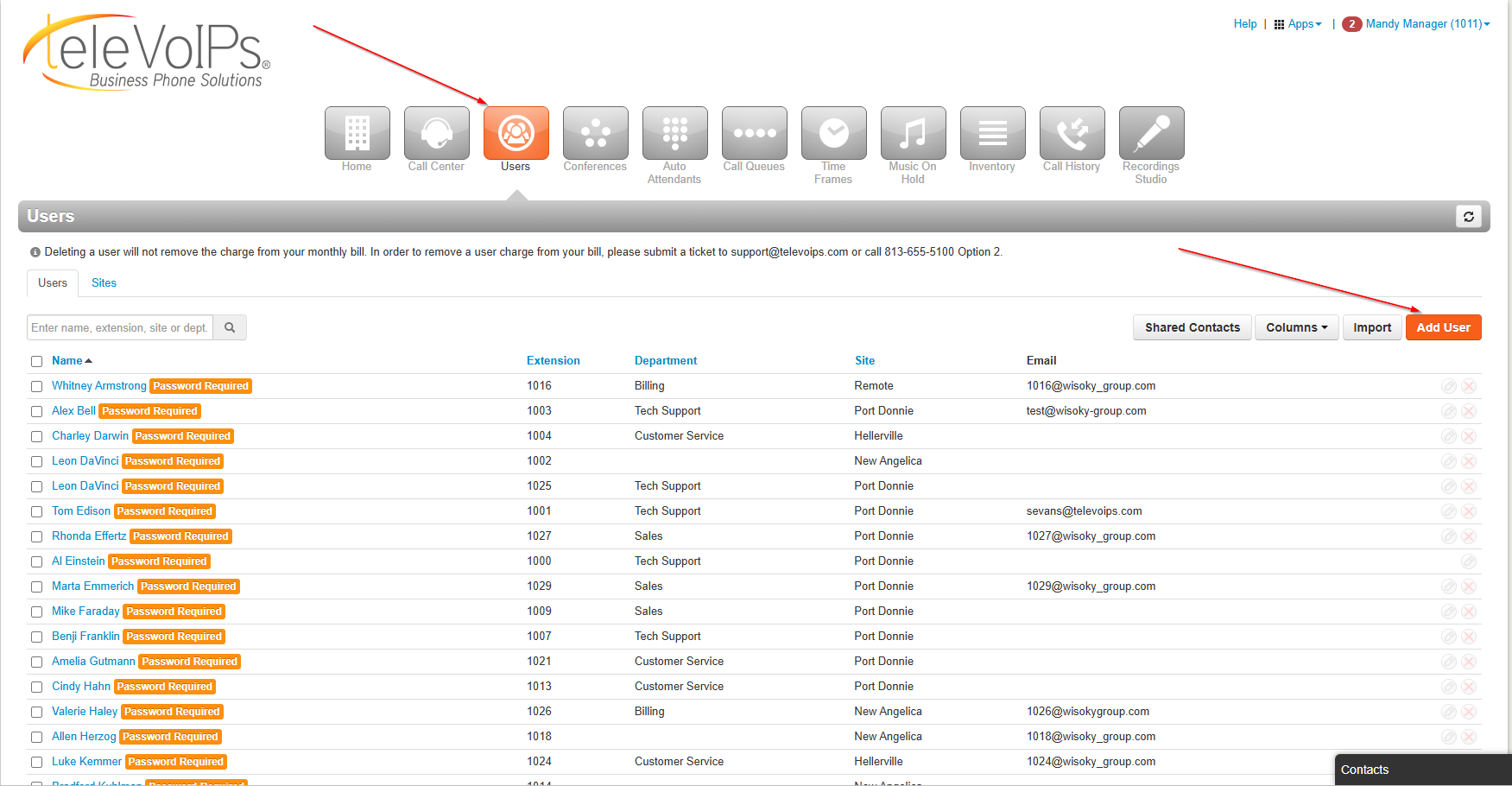
Navigate to Users, then click Add User
- In the Add a User window, enter the user's First Name and Last Name.
- Enter an extension number. Note: The extension number cannot be changed once set.
- (Optional) Enter a Department.
- (Optional) Enter a Site.
- (Optional) Enter one or more Email Address(es). Click the green + icon to add additional addresses if needed.
- Required: Select an Emergency Address from the dropdown.
- (Optional) Set the User's Scope (e.g., Basic User) to control the user's permission level.
- Required: Select an Emergency Caller ID from the dropdown.
- Leave Enable Voicemail checked if the user should have voicemail (checked by default).
- Leave Add Phone Extension checked if the user should have a phone extension (checked by default).
- Click Add User.
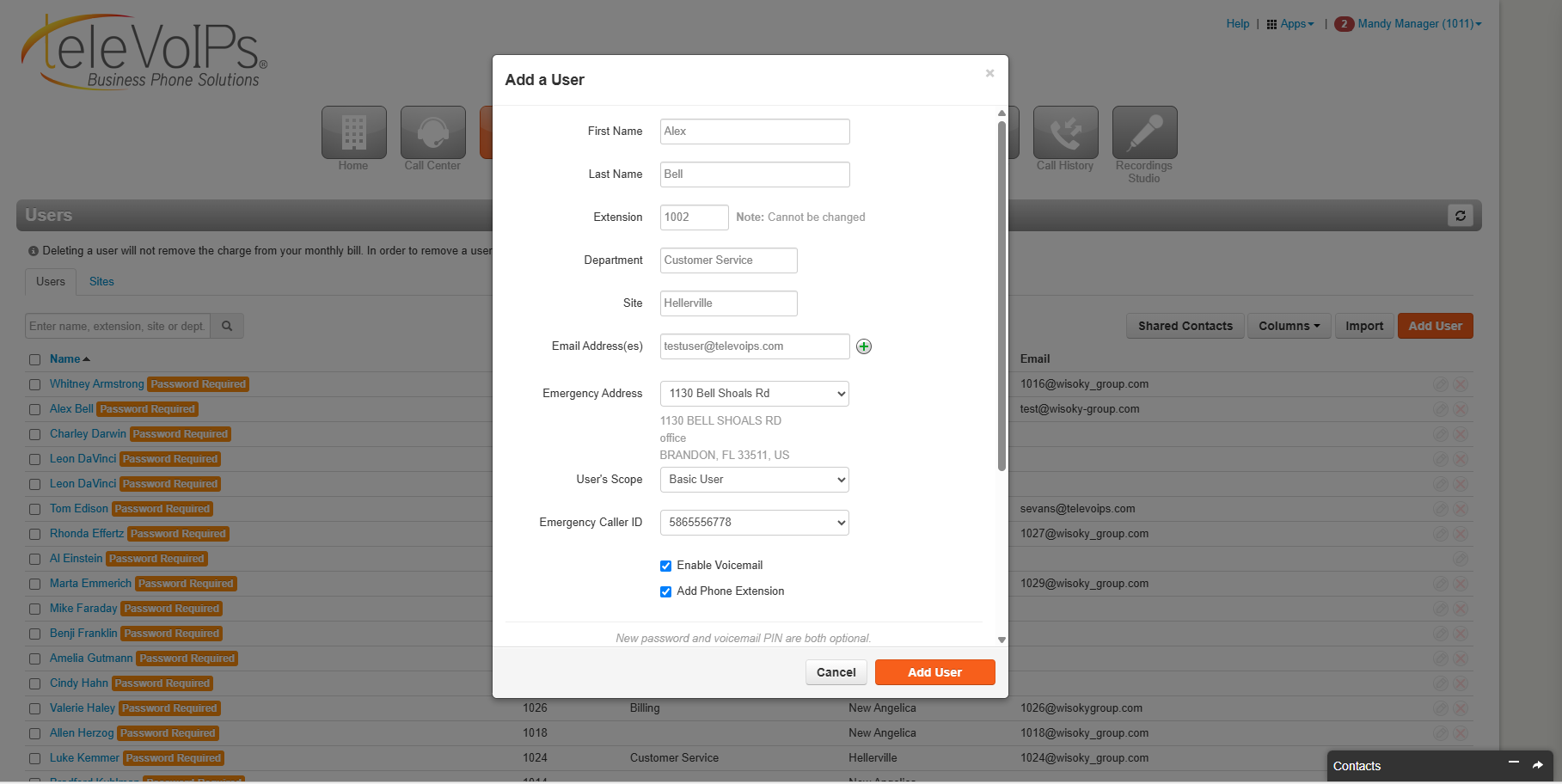
Fill in the user details, then click Add User
The user has now been created, but setup isn't complete yet — continue to Part 2.
Part 2: Configure Login Name
- Go back to the Users page and find the new user in the list.
- Click the user's name to open their profile. This opens on the Profile tab, showing:
Recommended: Update the Login Name field to match the user's email address , then Click Save.
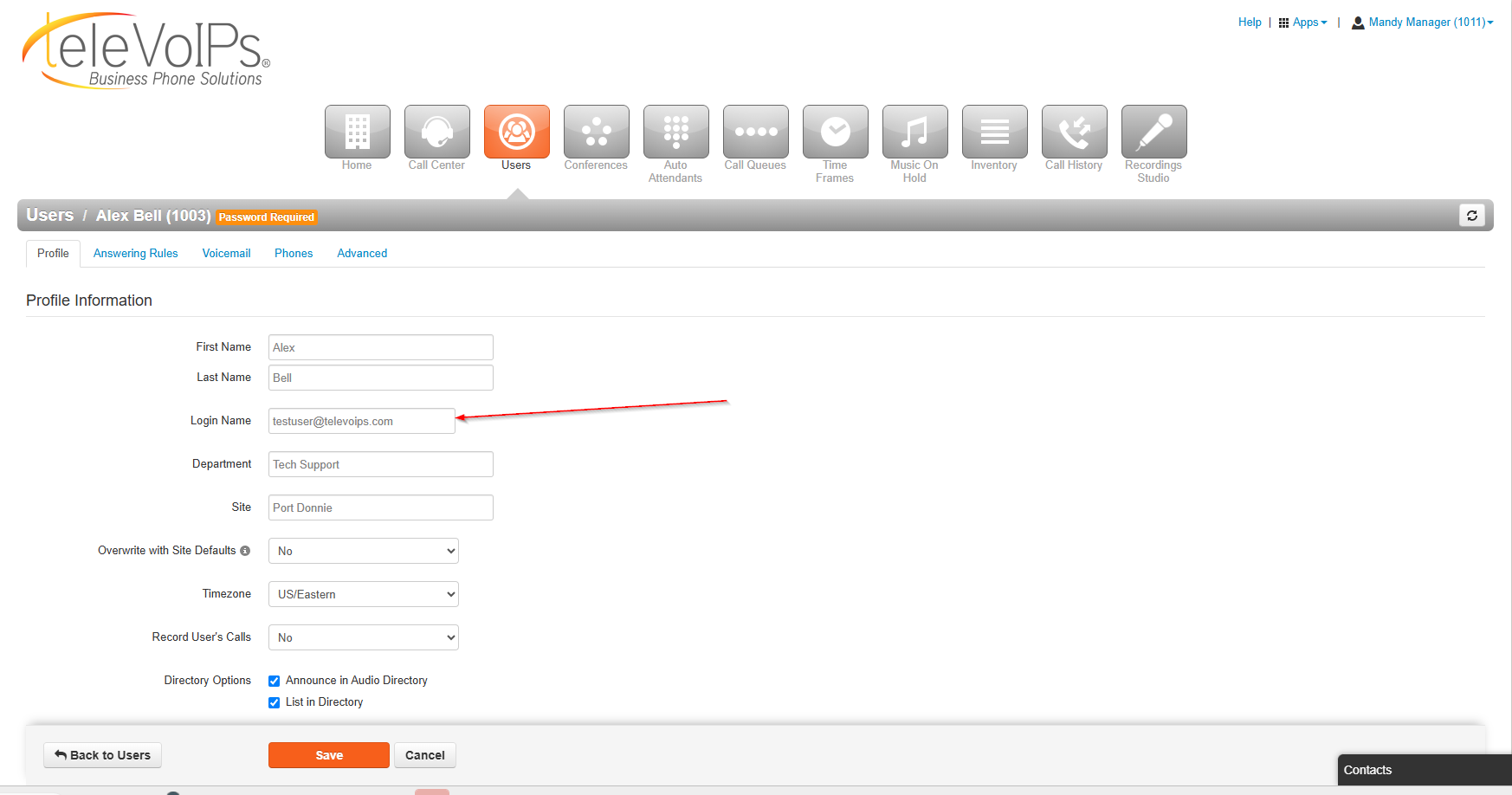
Update the Login Name on the Profile tab, then click Save
Part 3: Send the Welcome Email
- On the user's profile, click the Advanced tab.
- Click Send Welcome Email.
This sends the user an email with a link to set up their password and voicemail PIN.
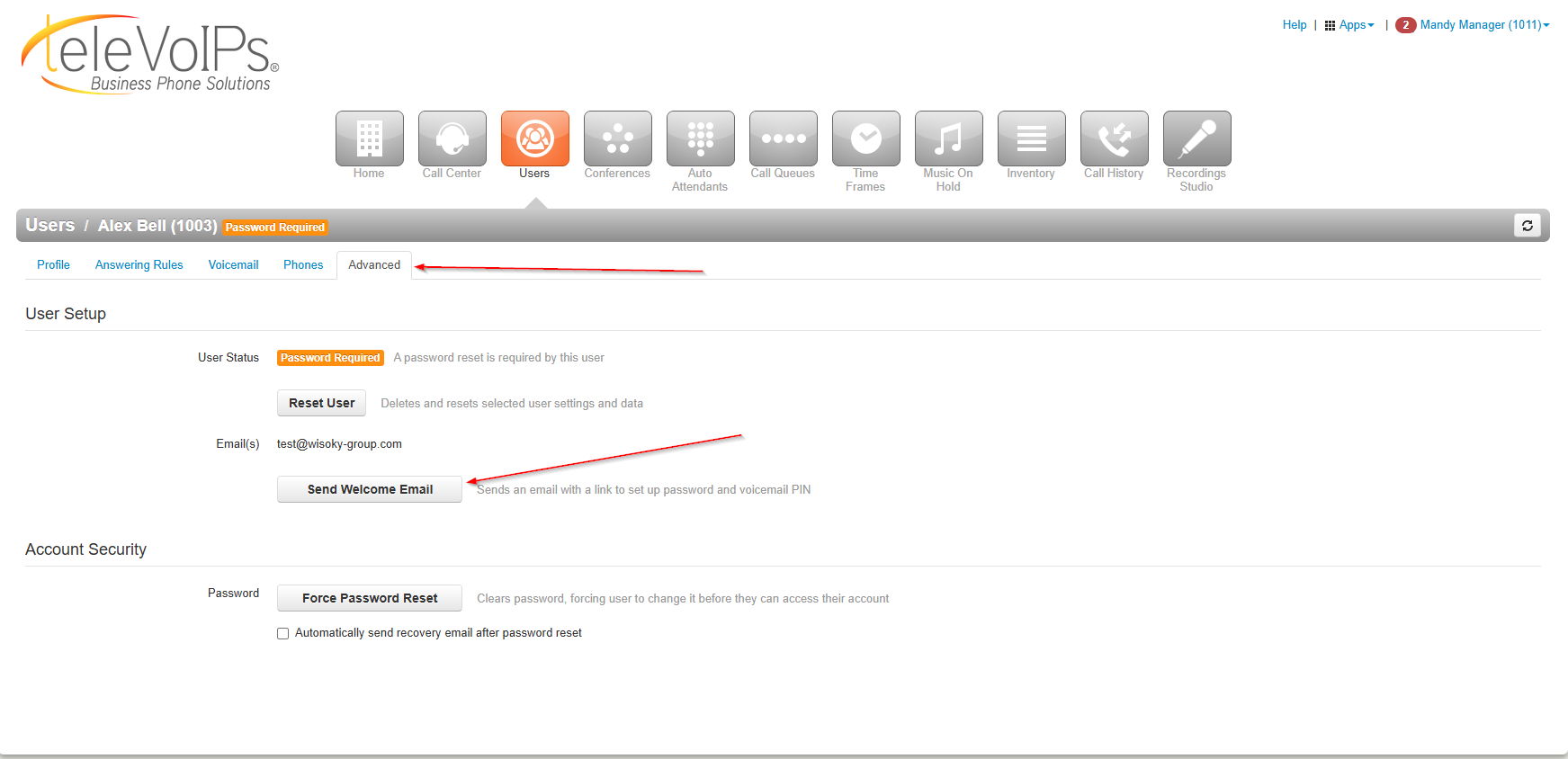
Send the Welcome Email from the Advanced tab
The user will now receive a welcome email with instructions to finish setting up their account and set their own password.
Other Useful Options on the Advanced Tab
- Reset User — deletes and resets the selected user's settings and data.
- Force Password Reset (under Account Security) — clears the user's password, forcing them to set a new one before accessing their account. You can optionally check "Automatically send recovery email after password reset."
Was this article helpful?
That’s Great!
Thank you for your feedback
Sorry! We couldn't be helpful
Thank you for your feedback
Feedback sent
We appreciate your effort and will try to fix the article