CALL QUEUES 
A Call Queue is a place holder for calls to sit waiting to be answered. A call queue can be configured to ring multiple devices in a certain order or a parking lot for a call to sit and wait until someone retrieves the call.
You may have queues programmed for you during on-boarding, but you may find the need to edit or even add more queues as your needs change.
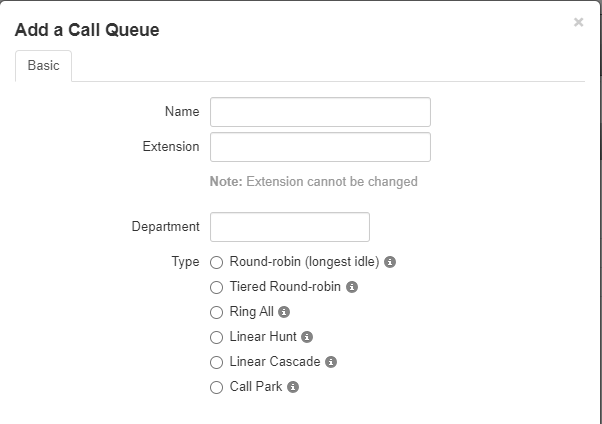
Adding a Call Queue
- Click the 'Add Call Queue' button.

- You'll be taken to the 'Basic tab'.
Basic Tab Fields
- Queue Name
- Extension Number: (cannot be changed later; recommended range: 7001–7999)
- Ring Type:
- Round-robin – Routes callers to the agent who has been idle the longest.
- Ring All – All available agents’ phones ring at once; the first to answer takes the call.
- Linear Hunt – Calls are routed in a fixed order, starting from the top of the list until answered.
- Linear Cascade – Similar to Linear Hunt, but each agent has a set amount of time to answer before the call moves on.
- Call Park – Places a call on hold in a “parking spot,” so it can be retrieved from another phone or location.
- For more information on Ring types click here: Ring Types Explained
Pre-Queue Options
If you choose any ring type except Call Park, the Pre-Queue Options tab will appear.
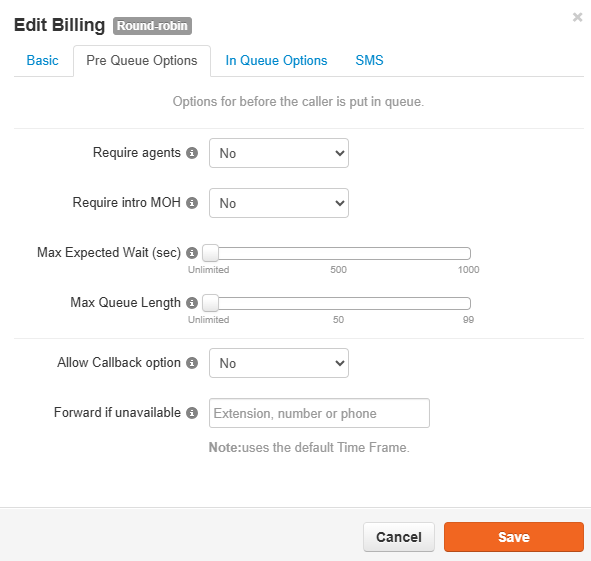 These settings define the conditions that must be met before a call enters the queue. Here, you can adjust:
Expected Wait
Queue Length
Require Agent
Intro MOH (Music on Hold)
If these conditions aren’t met, the call is forwarded to the Forward if Unavailable destination, where you can enter an extension or phone number.
In-Queue Options
This tab controls how calls are handled after they enter the queue. Options vary depending on the selected ring type.
Managing Queue Agents:
Once you save your queue, it will appear alongside your other call queues. To the right of the queue name and extension, you’ll see the selected ring type and a summary of how many callers and agents are in the queue.
From here, you can:
Add Agents
Edit Music on Hold
Edit queue settings (except the name or extension number)
Delete the queue

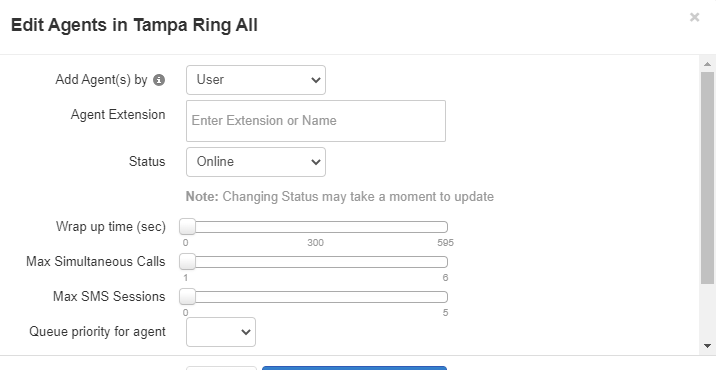
Editing Agents
Click the Edit Agent icon.
Add or remove agents.
Configure settings such as:
Receive Calls – Enable or disable call handling.
Maximum Simultaneous Calls – Limit how many calls an agent can handle at once.
Wrap Time – Delay before the agent can receive another call.
Queue Priority – Set priority if the agent belongs to multiple queues.
Order in Linear Hunt – Define the agent’s position if using Linear Hunt.
Important: Click SAVE AGENT after making changes.
Agent Phone vs. User
- Use the Agent Phone field to assign specific devices.
- This ensures queue settings control call routing, not the user’s personal answering rules.
NOTE: For extended steps detailed instructions click here: Call Queues (Extended Explanation)
Was this article helpful?
That’s Great!
Thank you for your feedback
Sorry! We couldn't be helpful
Thank you for your feedback
Feedback sent
We appreciate your effort and will try to fix the article