 AUTO ATTENDANT
Setup and Configuration Guide
An Auto Attendant is an automated greeting system that provides callers with menu options to route their calls. It’s a powerful tool for managing call flow, especially during off-hours or high-volume periods.
The Auto Attendant Builder in the manager portal makes it easy to create, edit, and manage menus, update greetings, and adjust routing options as needed.
Accessing Auto Attendants
Click Auto Attendants in the top navigation bar.
A list of all programmed menus will appear.
Creating a New Auto Attendant
Click Add Attendant on the right-hand side of the page (below the refresh button).
Enter the following details:
Name: Assign a name to the attendant.
Extension Number: Use a number in the recommended range (9001–9999).
Time Frame: Set to Default (all the time) unless instructed otherwise.
Click Continue to proceed.
NOTE: For more of a step by step detailed explanation click here: Managing Existing Auto Attendant Options and Attendant Failover
Greeting Structure
Each Auto Attendant can include two types of audio messages:
Introductory Greeting (optional): Plays first when a call reaches the attendant.
The intro must finish before callers can select menu options.
Example: “Thank you for calling Acme Corporation. You've reached us outside normal business hours.”
Menu Prompt: Presents the caller with available routing options.
Example: “Press 1 for Sales, press 2 for Marketing, or press 0 for Operator Assistance.”
Separating the intro and menu prompt allows you to update greetings (e.g., holidays, after-hours) without re-recording the entire menu.
Example: 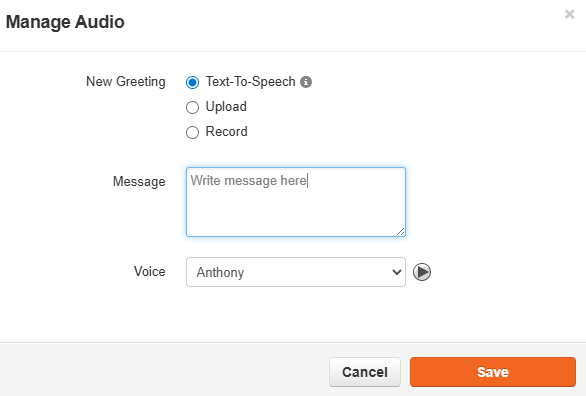
Adding Options: You can assign actions to menu keys 0–9. First, choose a number, then select the application it will activate. Be sure to click Save at the bottom when finished.
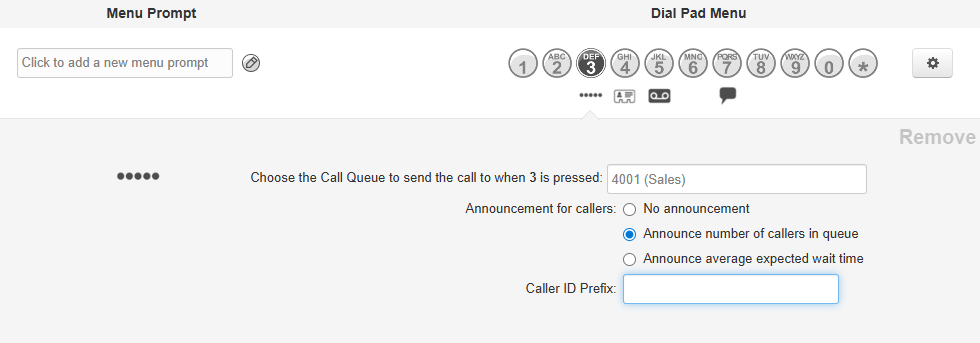
Options: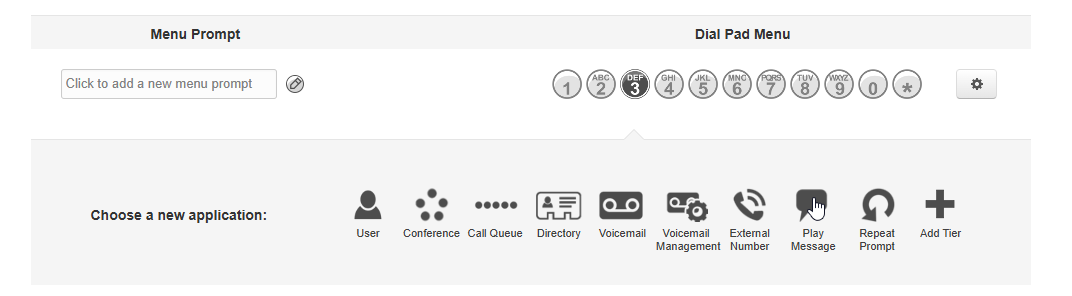 Example:
- User = goes to a user (extension).
- Conference = goes to a conference bridge.
- Call Queue = goes to a call queue.
- Directory = goes to a dial by name directory.
- Voicemail = goes to a specific mailbox.
- Voicemail Management = allows outside staff to call in and retrieve voicemail.
- External Number = forwards to an external telephone number (for example, to send caller to on-call staff).
- Play Message = plays another message, commonly used for hours and directions.
- Repeat Prompt = replays the menu of options to the caller.
- Add Tier = adds a submenu with a new greeting and set of options. Controls allow you to play an announcement and show a caller ID prefix.
Caller ID Prefix
The Caller ID Prefix field allows you to customize the caller ID on outbound calls made from this Auto Attendant extension. This is useful for quickly identifying calls that originated from specific menus or departments.
NOTE: If you would like to use a third party service to help create auto attendant messages you can visit the Recordings Studio
Was this article helpful?
That’s Great!
Thank you for your feedback
Sorry! We couldn't be helpful
Thank you for your feedback
Feedback sent
We appreciate your effort and will try to fix the article