
CALL HISTORY
The Call History takes you to a list of all the calls made to and from your organization. You can change the date range visible by selecting ‘Filters’, once in there, you will see you can filter the calls by a few different categories: User, Caller Number, Dialed Number, Call Type.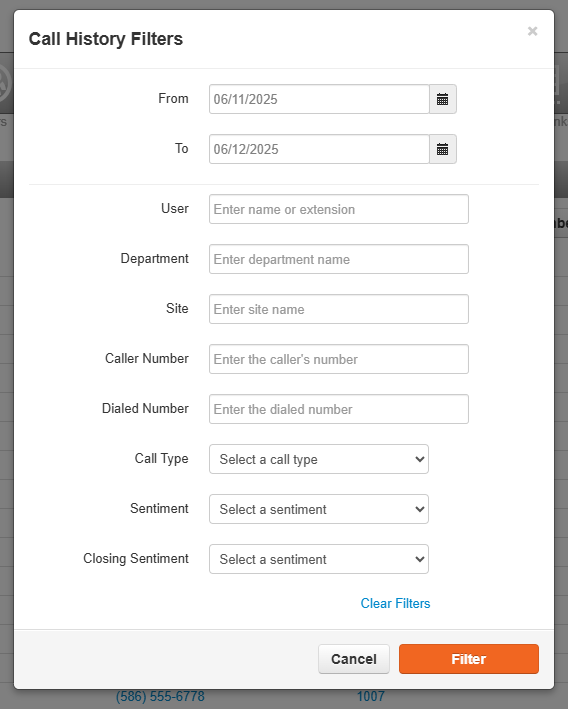
Exporting Call History
Click the Export button (top-right) to download call data as a CSV file.
You can also schedule automatic reports to be sent to your email daily, weekly, or monthly.
Scheduled exports can include custom filters.
After a scheduled export is created, you can edit its options by clicking the Edit icon.
If you need to block a number simply press the first button to the right of the call number. The icon is shown below:
 For more information on how blocked numbers work click here: How Blocked Numbers Work
Additional Features:
In the form of button to the right-hand side of the call. First you can Listen or Download recording by using the icons shown below.
| Download Recording | Play Recording |
 |  |
There is also the "Cradle to Grave" button, which lets you see the beginning to the end of the call flow

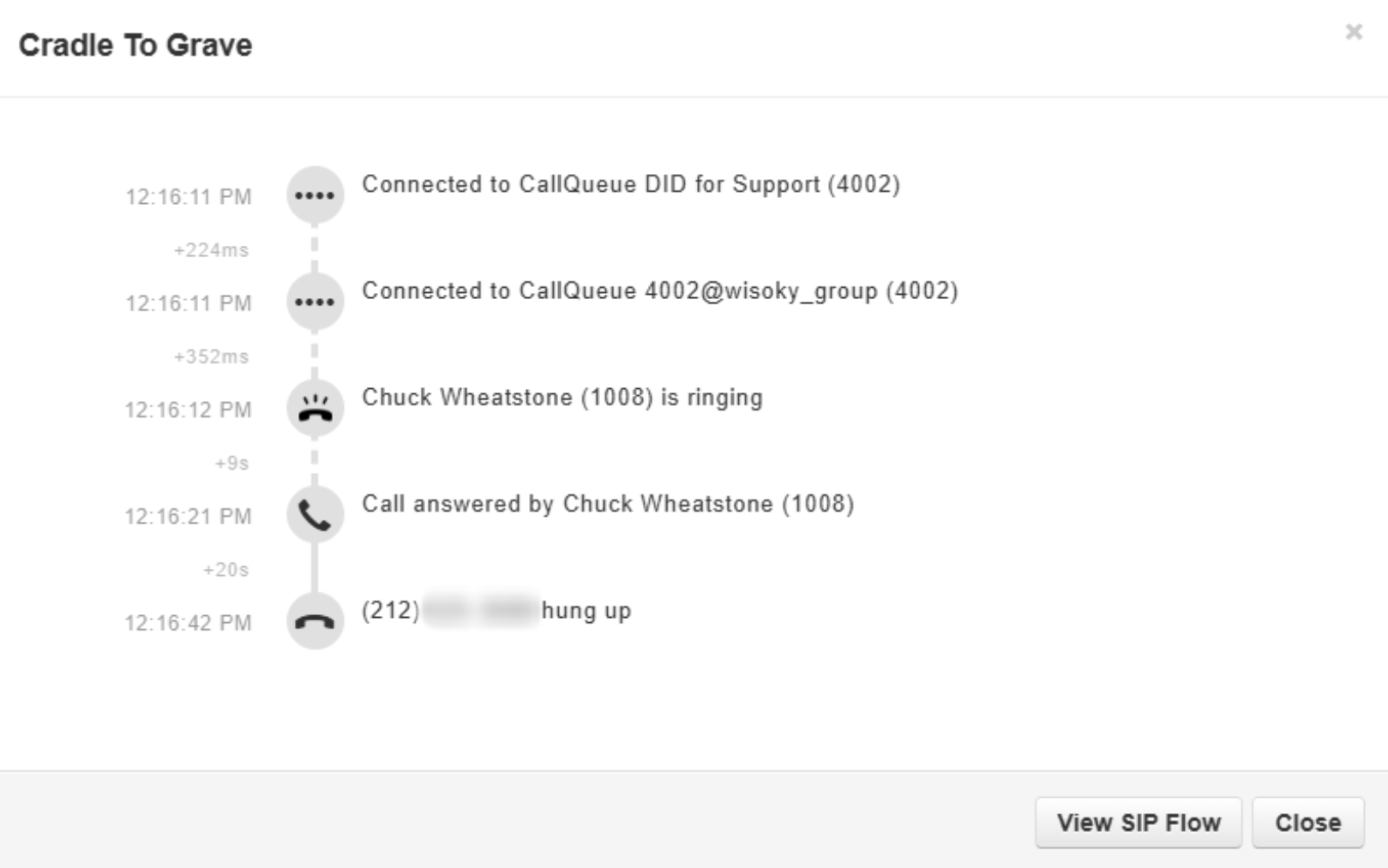
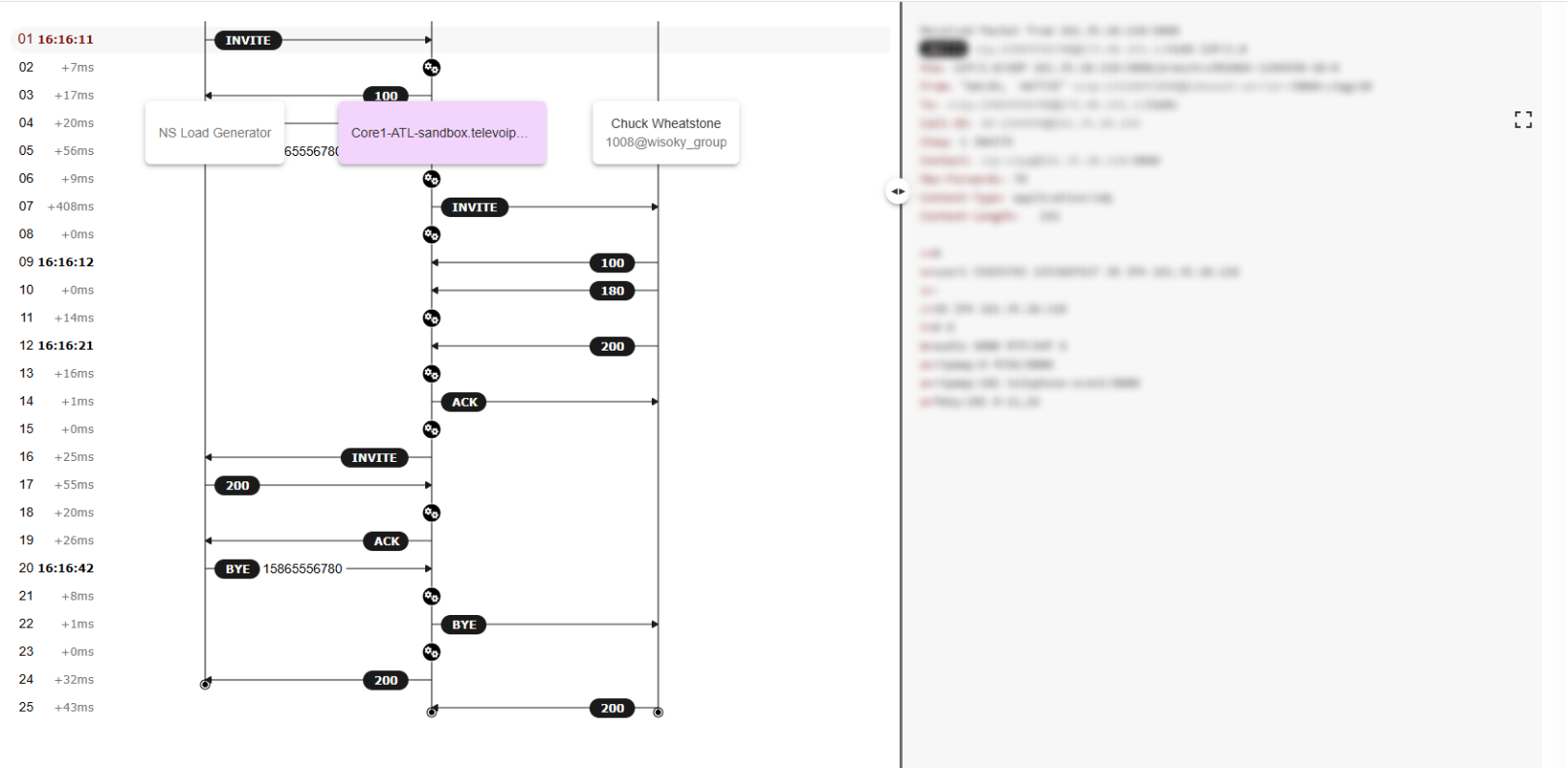
You can also click on View SIP Flow to view the inner data of the call
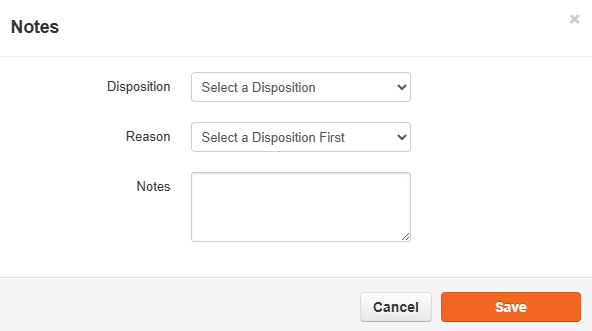
Finally there is Notes. You can create Notes by selecting the rightmost button. 
Here you can add any Notes you desire, and don't forget to click Save!
Was this article helpful?
That’s Great!
Thank you for your feedback
Sorry! We couldn't be helpful
Thank you for your feedback
Feedback sent
We appreciate your effort and will try to fix the article