| Step ONE: Initialize Transfer Select one of the two arrows on the bottom right of the phone app. Here you can select Blind or Attended Transfer | 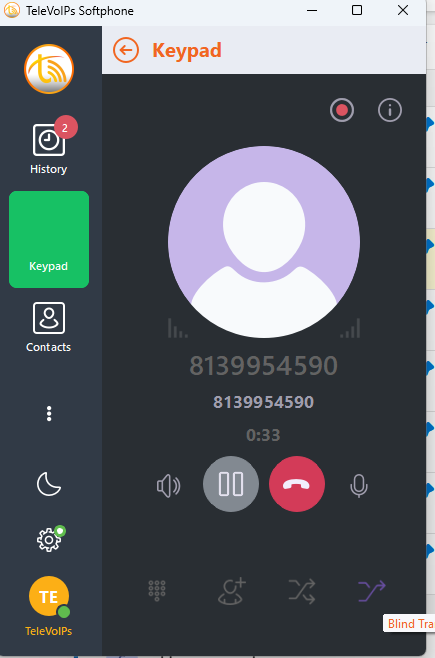 |
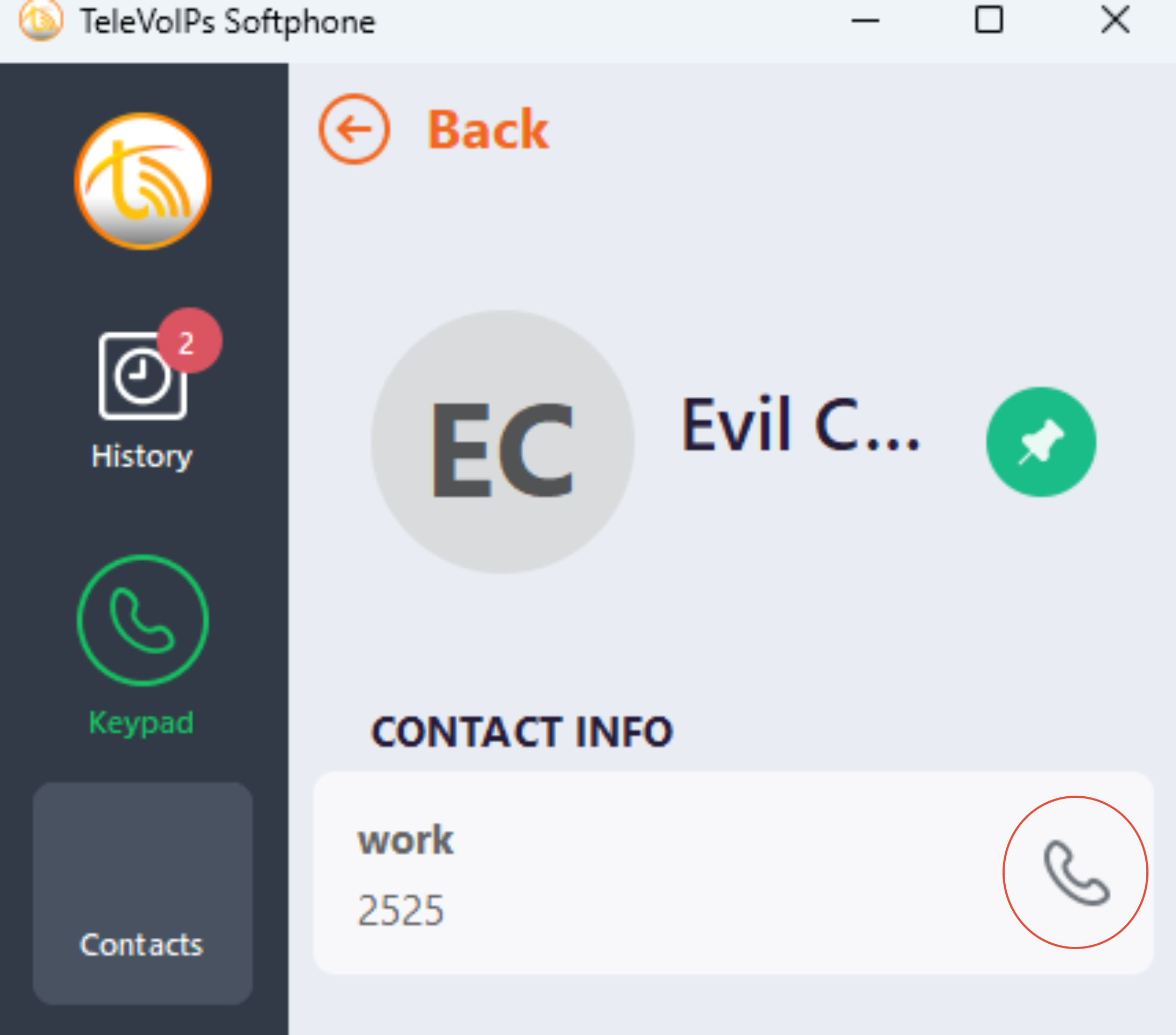
| Step TWO: Navigate to your Contacts With the caller on Hold, navigate to the 'Contacts' on the left hand side. From there, select the drop down and the applicable contact list. Once in the contacts, select your agent and hit the phone emoticon (circled in red below). If blind transfer, the caller will be moved to the select agent. If attended transfer, you will begin calling the agent to then complete the transfer as normal. | 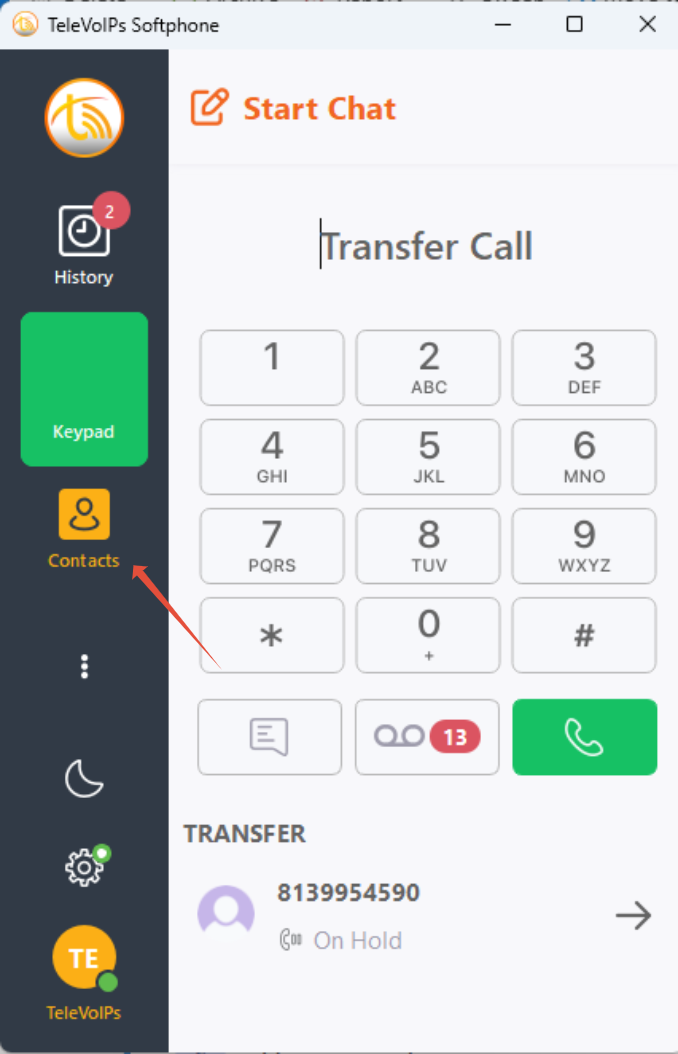 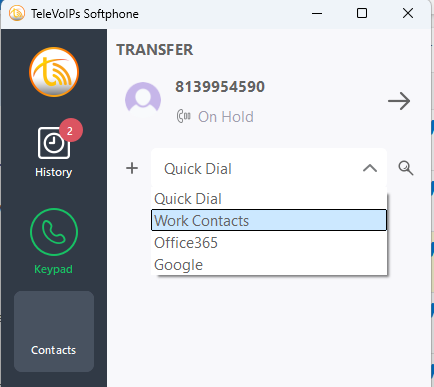 |
Was this article helpful?
That’s Great!
Thank you for your feedback
Sorry! We couldn't be helpful
Thank you for your feedback
Feedback sent
We appreciate your effort and will try to fix the article