Call Handling Blind Transfer - - During an active call, press the Transfer soft key. The call is placed on hold.
- Enter the number/extension you would like to transfer the call to.
- Press the B Transfer softkey.
Attended Transfer - - During an active call, press the Transfer soft key. The call is placed on hold.
- Enter the number/extension you would like to transfer the call to; press Send.
- When the second party answers, announce the call then press the Transfer soft key.
Parking a Call - - During a call, press one of your Call Park keys. The call will be transferred to the corresponding parking lot (701, 702, 703, etc)
- To pick a call from park: press an occupied park key, or dial the lot number directly.
- An occupied parking lot will have a red light while an empty one will have a green light.
Setting Up a 3-Way Conference Call - - During an active call, press the Conference soft key.
- Enter the extension or external number of the second party, then press the Send soft key.
- Press the Conference soft key again when the second party answers. All parties are now joined in the conference.
- Hang up the handset to disconnect all parties or press End Call.
Do Not Disturb (DND) - - To activate or deactivate DND: Press the DND soft key when the phone is idle.
Call History While the phone is idle: - Press the History soft key.
- Press up/down to switch between All, Missed, Placed, and Forwarded.
- Select an entry from the list using the up and down arrow key.
- To place a call to that number: Press the Send soft key
- To view information about the entry: Select the Option soft key, then select Detail from the prompt list
- To add to your Local Directory: Select Add to Contacts
Connecting to Bluetooth Activating Bluetooth - A BT41 USB dongle is required for the T77U. Activate Bluetooth before connecting a device. - Navigate to Menu > Basic > Bluetooth.
- Select On from the Bluetooth field.
- Select Save.
Pairing a Bluetooth Headset - - Make sure the Bluetooth headset is discoverable.
- Navigate to Menu > Basic > Bluetooth.
- Select Scan to search for Bluetooth devices.
- Locate your Bluetooth headset; select Connect.
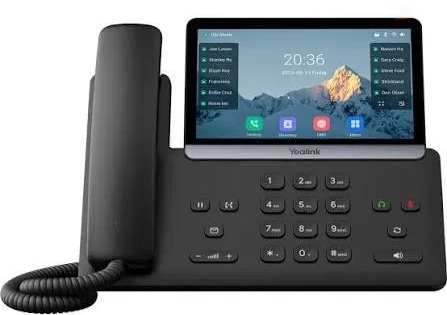
| Key Descriptions Speakerphone Key — Press this key to use the speakerphone. Headset Key — Press this key to activate headset mode. Mute Key — Press this key to mute the microphone or a call. Message Key — Press this key to access voicemail. Redial Key — Press this key to redial a previously dialed number. Hold Key — Place a call on hold or resume a held call. Transfer Key — Transfer a call to another party. • Press during a call to adjust receiver volume of the handset/speakerphone/headset.
• Press when the phone is idle or ringing to adjust the ringer volume. Power LED Indicator Solid Red: Phone is initializing. Fast Red Flash: Phone is ringing. Slow Red Flash: New voicemail or text message.
Voicemail The message waiting indicator on the idle screen indicates that one or more voice messages are waiting. The power indicator LED slowly flashes red. - Press the MESSAGE key or the View soft key.
- Either press the OK button or the Connect soft key.
- Enter your voicemail password when prompted. By default, this will be your extension twice.
- To listen to your voice messages, press 1. You can listen to any saved messages by pressing 2.
- Listen to each prompt for the different voicemail options.
- After most prompts, Press # finish your current action.
Connecting to Wi-Fi A WF50 USB dongle is required for the T77U. - Navigate to Menu > Basic > Wi-Fi.
- Highlight the X Available Network(s); select Enter.
- (Optional) To refresh the list, select Scan.
- Highlight the desired wireless network; select Connect.
- If the network is secure, enter its password.
- Select OK.
|