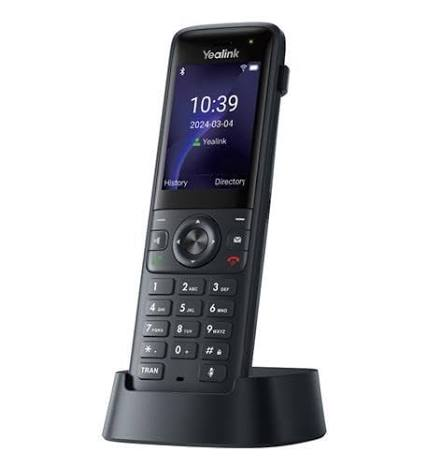
Yealink AX83H - Quick Reference Guide
AX83H Hardware Key Reference
| 1. 2.4" Color Screen (240x320) | 6. Speakerphone Key |
| 2. Soft Keys | 7. Mute Key |
| 3. Navigation / OK Key | 8. Transfer Key |
| 4. Keypad | 9. USB-C Charging Port |
| 5. Headset Jack (3.5mm) | 10. Volume Keys |
The AX83H is a portable Wi-Fi handset with built-in Bluetooth 5.0 and dual-band Wi-Fi 6 (2.4G/5G). It supports up to 4 SIP accounts, 5-way conferencing, 9 configurable keys, and features a 2000mAh battery (9 hrs talk / 200 hrs standby).
⚠ Wi-Fi Connection Required
The AX83H is a Wi-Fi-only device with no Ethernet port. You must connect to a Wi-Fi network before the phone can register with the phone system. Without a Wi-Fi connection, the device cannot make or receive calls.
Connecting to Wi-Fi (Required) The AX83H must be connected to Wi-Fi to register and make calls. Built-in dual-band Wi-Fi 6 (2.4G/5G). - Navigate to Menu > Settings > Wi-Fi.
- The phone will scan for available networks automatically.
- Select your desired Wi-Fi network from the list.
- If the network is secure, enter the password when prompted.
- Select OK/Connect. The phone will connect and begin registration.
Call Handling Blind Transfer - - During an active call, press the Transfer soft key. The call is placed on hold.
- Enter the number/extension you would like to transfer the call to.
- Press the B Transfer softkey.
Attended Transfer - - During an active call, press the Transfer soft key. The call is placed on hold.
- Enter the number/extension you would like to transfer the call to; press Send.
- When the second party answers, announce the call then press the Transfer soft key.
Parking a Call - - During a call, press an empty park key. The call will be transferred to that parking lot.
- To pick a call from park: press an occupied park key.
- An occupied parking lot will have a red light while an empty one will have a green light.
Setting Up a Conference Call - - During an active call, press the Conference soft key.
- Enter the extension or external number of the second party, then press the Send soft key.
- Press the Conference soft key again when the second party answers. All parties are now joined.
- The AX83H supports up to 5-way local conferencing.
Do Not Disturb (DND) - - To activate or deactivate DND: Dial *78 to enable, *79 to disable
Call History While the phone is idle: - Press the History soft key.
- Press up/down to switch between All, Missed, Placed, and Forwarded.
- Select an entry from the list using the up and down arrow key.
- To place a call to that number: Press the Send soft key
- To view information about the entry: Select the Option soft key, then select Detail from the prompt list
- To add to your Local Directory: Select Add to Contacts
| Key Descriptions Speakerphone Key — Press this key to use the speakerphone. Mute Key — Press this key to mute the microphone or a call. Transfer Key — Transfer a call to another party. Soft Keys — Context-sensitive keys that change based on the current screen. Navigation / OK Key — Navigate menus and confirm selections. • Press the volume keys during a call to adjust receiver volume.
• Press when idle or ringing to adjust the ringer volume. Battery & Charging • 2000mAh rechargeable battery. • Talk time: Up to 9 hours. • Standby time: Up to 200 hours. • Charge via USB-C port or charging cradle. Voicemail The message waiting indicator on the idle screen indicates that one or more voice messages are waiting. - Press the MESSAGE key or the View soft key.
- Either press the OK button or the Connect soft key.
- Enter your voicemail password when prompted. By default, this will be your extension twice.
- To listen to your voice messages, press 1. You can listen to any saved messages by pressing 2.
- Listen to each prompt for the different voicemail options.
- After most prompts, Press # finish your current action.
Connecting to Bluetooth Built-in Bluetooth 5.0 for headset connectivity. - Navigate to Menu > Settings > Bluetooth.
- Select On to enable Bluetooth.
- Select Scan to search for devices.
- Locate your Bluetooth headset; select Connect.
|
Contact us at: 813.655.5100, Option 2 or support@televoips.com